
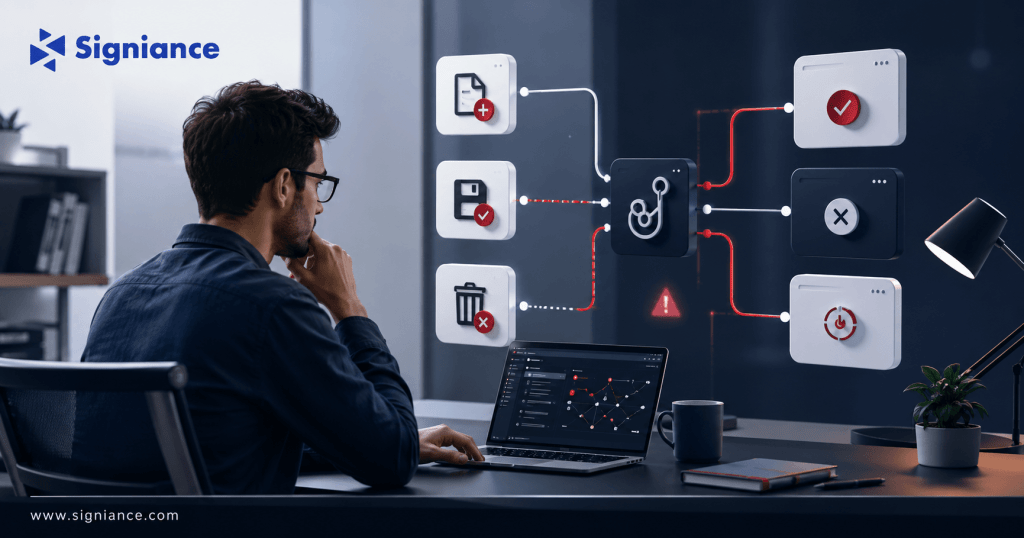
A practical troubleshooting guide for file patterns, workspace roots, hook versions, enabled states, and trigger behavior
Kiro Agent Hooks can automate tasks when files are created, saved, or deleted, but a hook that does not trigger can be difficult to diagnose because several configuration layers control the event. This guide covers the most common causes, including incorrect file patterns, disabled or legacy hooks, workspace root issues, and differences between agent and local command actions.
Table of Contents
- Topic Introduction
- Why Kiro Agent Hooks Fail
- How Kiro File Hooks Work
- When to Check Each Configuration
- Top 8 Ways to Fix Kiro Agent Hooks
- Conclusion
Topic Introduction
Kiro Agent Hooks are designed to react to specific development events. File Create, File Save, and File Delete hooks can run an agent prompt or a shell command when matching files are changed. Kiro’s current documentation also distinguishes these file events from other triggers such as Prompt Submit, Agent Stop, Pre Tool Use, Post Tool Use, and Spec task events.
When a file hook does nothing, the problem is usually configuration rather than the automation itself. The trigger may be correct while the file pattern is wrong, the hook may be disabled, the hook may belong to a different workspace root, or an older hook format may no longer execute.
Why Kiro Agent Hooks Fail
- Wrong file pattern: The hook can be configured correctly but never match the path of the file being changed.
- Wrong trigger: File Save, File Create, and File Delete are separate events, so selecting the wrong event prevents the expected execution.
- Disabled hook: Kiro lets users enable or disable hooks without deleting them, so an existing hook can remain inactive.
- Legacy format: Kiro 1.0 requires legacy 0.x hooks to be migrated before they execute.
- Wrong workspace root: In multi-root workspaces, file event hooks trigger only for files in the same root folder where the hook is defined.
How Kiro File Hooks Work
Kiro’s IDE hooks use an event plus a file pattern to determine when automation should run. The action can then either send a prompt to the Kiro agent or execute a shell command.
| Configuration | What to Check | Common Problem |
|---|---|---|
| Event | File Save, Create, or Delete | Wrong trigger selected |
| Pattern | Target file path or glob | Pattern does not match |
| Enabled | Hook is active | Hook was disabled |
| Workspace | Correct project root | Hook is stored in another root |
| Version | Current hook format | Legacy hook has not been migrated |
| Action | Agent prompt or command | Action is failing after trigger |
| Permissions | Command or tool access | Action cannot complete |
| Timeout | Command execution limit | Long command exceeds timeout |
Kiro’s current hook documentation shows file events as PostFileCreate, PostFileSave, and PostFileDelete in the structured v1 format. The UI exposes these as File Create, File Save, and File Delete events.
When to Check Each Configuration
| Symptom | Check First | Next Check |
|---|---|---|
| Nothing happens | Enabled state | Event type |
| Only some files trigger | File pattern | Workspace root |
| Create works, save fails | Save trigger | Save pattern |
| Save works, delete fails | Delete trigger | Delete pattern |
| Hook disappeared | Hook version | Migration status |
| Hook triggers but no result | Action type | Agent or command errors |
| Works in one folder | Workspace root | Multi-root configuration |
| Manual run works | Event and pattern | File event detection |
A useful troubleshooting rule is to separate the problem into two questions:
- Did the hook trigger?
- Did the action succeed?
This prevents you from changing the file pattern when the actual problem is the command or agent action.
Top 8 Ways to Fix Kiro Agent Hooks
1. Confirm the Hook Is Enabled
- Open hooks: Go to the Agent Hooks section in the Kiro panel.
- Check status: Confirm the hook is enabled rather than merely present.
- Inspect settings: Open the hook and review its trigger and file pattern.
- Enable directly: Use the Hook Enabled control if the hook is disabled.
- Test manually: Use the play button to run the hook independently of a file event.
Manual execution is especially useful because it separates hook configuration problems from file-event detection problems.
2. Verify the Trigger Type
- Check save: Use File Save when the expected event is a saved file.
- Check create: Use File Create for newly created files.
- Check delete: Use File Delete for removed files.
- Avoid assumptions: Creating a file and saving a file are separate events.
- Review trigger list: Confirm the selected event matches the operation you are testing.
For example, a hook configured for File Create should not be expected to run every time that file is subsequently saved.
3. Fix the File Pattern
- Match paths: Make sure the pattern describes the actual workspace path.
- Start simple: Test with a broad pattern before adding complex restrictions.
- Check extensions: Confirm .ts, .tsx, .js, .jsx, or other extensions are included.
- Check directories: Make sure the target folder is included.
- Avoid typos: One incorrect directory name can prevent every event from matching.
Kiro’s documentation provides patterns such as src/**/*.{js,ts,jsx,tsx} for file-save hooks.
For example:
src/**/*.ts
can target TypeScript files below src.
A more restrictive pattern can be useful after the basic hook has been proven to work.
4. Check the Workspace Root
- Inspect project roots: Confirm which folder Kiro considers the workspace root.
- Check hook location: Make sure the hook belongs to the intended root.
- Review multi-root setups: Each workspace root can have its own .kiro directory.
- Test same-root files: Create or save a file within the root containing the hook.
- Avoid cross-root assumptions: A hook defined in one root does not automatically monitor another root.
Kiro specifically documents that File Create, File Save, and File Delete hooks in multi-root workspaces trigger only when the agent modifies files in the same root folder where the hook is defined.
5. Check for Legacy Hooks
- Open the panel: Look for hooks showing a migration or upgrade indicator.
- Check version: Older Kiro 0.x hooks may use the legacy format.
- Migrate first: Convert legacy hooks through the Agent Hooks panel.
- Confirm activation: Kiro states that a migrated hook becomes active immediately.
- Do not edit blindly: Preserve the original file until migration has been verified.
Kiro’s current 1.0 documentation states that legacy hooks appear with an upgrade badge and will not execute until migrated to the v1 format.
This is one of the first checks to make after upgrading Kiro.
6. Test the Action Separately
- Use commands: Choose a shell command when the task is deterministic.
- Use agents: Choose an agent prompt when the task needs context or reasoning.
- Run manually: Trigger the hook from the Agent Hooks panel.
- Check output: Look for command errors or agent responses.
- Separate failures: A successful trigger does not guarantee a successful action.
Kiro supports both Agent Prompt and Shell Command actions. Shell commands execute locally, while Agent Prompt actions send another request to the agent and therefore consume credits.
For simple formatting or testing, a shell command can be more predictable.
7. Test With a Minimal Hook
- Remove complexity: Start with one event and one file pattern.
- Use a simple command: Test with a command that produces an obvious result.
- Target one file: Avoid testing across an entire repository initially.
- Confirm execution: Verify that the command actually runs.
- Add complexity later: Restore the real action after the trigger is confirmed.
For example, start with a File Save hook targeting:
src/**/*.ts
and a simple local command such as a formatter or test command.
Once the trigger works, replace the test command with the actual workflow.
8. Check the File Event You Are Actually Generating
- Test editor saves: Save a file directly inside Kiro.
- Test creation: Create a new matching file inside the workspace.
- Test deletion: Delete a matching file from the workspace.
- Compare methods: Check whether the event behaves differently when files are changed externally.
- Use manual execution: Confirm the hook itself works before diagnosing event behavior.
Kiro’s documented file hooks are intended for files created, saved, or deleted in the workspace. The official examples include a File Save hook for test coverage and File Create and File Delete hooks for maintaining an asset index.
A Simple Diagnostic Workflow
| Step | Test | Expected Result |
|---|---|---|
| 1. Enable | Turn the hook on | Hook is active |
| 2. Manual run | Click play | Action executes |
| 3. Event | Confirm File Save/Create/Delete | Correct event selected |
| 4. Pattern | Use one known file | Pattern matches |
| 5. Root | Test same workspace root | Event is detected |
| 6. Version | Check migration status | Current hook format |
| 7. Action | Test command or agent prompt | Action completes |
| 8. Real test | Modify target file | Hook runs automatically |
Conclusion
When a Kiro Agent Hook does not trigger, check the event, file pattern, enabled state, workspace root, and hook version before changing the action itself. Once the trigger works, test the action separately and keep simple deterministic tasks in shell commands where possible. For help designing Kiro workflows alongside AWS development and DevOps processes, contact Signiance Technologies.