
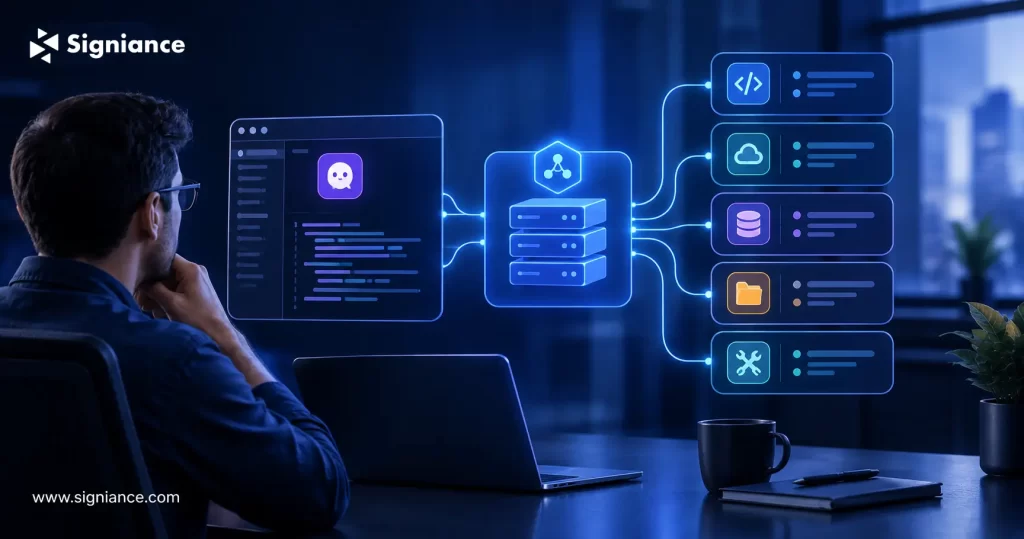
Connect Kiro to external tools, APIs, documentation, repositories, and internal systems to make development work more context-aware and useful.
Kiro can generate and modify code, but many development tasks require information that does not exist inside the codebase. Connecting MCP servers to Kiro lets the agent access external tools, resources, APIs, and specialized knowledge while working on a project. This guide explains how MCP works with Kiro, what you can connect, and how to use it without creating unnecessary security or maintenance risks.
Table of Contents
- Topic Introduction
- Why Connect MCP Servers to Kiro
- How MCP Works With Kiro
- When to Use MCP With Kiro
- Top 8 Ways to Extend Kiro With MCP
- Conclusion
AI coding assistants are useful when the required information is already available in the repository. The problem starts when a development task depends on information outside the codebase.
For example, a developer may ask Kiro to:
- Check AWS documentation: Find the correct configuration for an AWS service.
- Inspect GitHub: Review an issue, pull request, branch, or repository.
- Query an API: Retrieve information from an external service.
- Read internal data: Access an approved knowledge base or development system.
- Use project tools: Connect the agent to systems used by the engineering team.
This is where the Model Context Protocol, or MCP, becomes useful.
Kiro’s MCP support allows it to communicate with external MCP servers that expose tools, prompts, resources, and specialized context. Kiro supports local stdio servers and remote HTTP based servers, with MCP configuration available at workspace and user levels.
The important idea is simple:
Kiro + MCP = code intelligence plus access to selected external capabilities.
That can change Kiro from a tool that primarily works with source code into an agent that can interact with the systems surrounding that code.
Why Connect MCP Servers to Kiro
- Access external context: MCP can provide information that does not exist inside the local repository.
- Reduce context switching: Developers can work with documentation, repositories, APIs, and other tools through Kiro.
- Use specialized tools: An MCP server can expose functions designed for a specific service or internal workflow.
- Connect internal systems: Teams can build or use MCP servers for approved internal APIs, knowledge bases, and development tools.
- Keep control explicit: Kiro allows individual servers and tools to be enabled, disabled, or restricted through configuration.
How MCP Works With Kiro
| Component | Role |
|---|---|
| Kiro | Acts as the MCP client and agent interface. |
| MCP server | Exposes tools, prompts, resources, or external context. |
| Tool | Performs an action such as searching documentation or querying a service. |
| Resource | Provides information that the agent can use as context. |
| Prompt | Provides reusable instructions or prompt templates from a server. |
| Configuration | Defines how Kiro connects to each MCP server. |
| Approval controls | Determine which tools can run automatically or require approval. |
Kiro can connect to a local MCP server through a command and arguments, or to a remote server through a URL and optional headers or OAuth configuration.
A workspace-level configuration can be stored in:
.kiro/settings/mcp.json
A user-level configuration can be stored in:
~/.kiro/settings/mcp.json
Workspace configuration is useful for project-specific integrations, while user configuration is better for MCP servers used across multiple projects.
A basic configuration can look like:
{
“mcpServers”: {
“example-server”: {
“command”: “uvx”,
“args”: [“example-mcp-server”],
“disabled”: false
}
}
}
Remote servers can instead use a URL:
{
“mcpServers”: {
“company-api”: {
“url”: “https://api.example.com/mcp”,
“headers”: {
“Authorization”: “Bearer ${API_TOKEN}”
}
}
}
}
Kiro applies configuration changes when the configuration is saved and reconnects affected servers automatically.
When to Use MCP With Kiro
| Situation | MCP Fit |
|---|---|
| Development depends on external documentation | Strong |
| Developers frequently inspect GitHub issues | Strong |
| Project uses internal APIs | Strong |
| Teams need custom development tools | Strong |
| Kiro needs access to specialized knowledge | Strong |
| Task only requires local source code | MCP may not be necessary |
| Server requires broad production permissions | Review carefully before connecting |
| Integration is rarely used | Consider whether the maintenance cost is justified |
The goal should not be to connect every available MCP server.
Connect the systems that provide information or actions Kiro repeatedly needs to complete real development tasks.
Top 8 Ways to Extend Kiro With MCP
1. Connect AWS Documentation
- Search documentation: Let Kiro retrieve relevant AWS documentation while solving infrastructure problems.
- Reduce guessing: Give the agent access to current service documentation instead of relying only on model knowledge.
- Check configurations: Use documentation tools to investigate AWS configuration requirements.
- Support decisions: Ask Kiro to compare documented AWS approaches for a specific workload.
- Keep context nearby: Developers can research AWS concepts without leaving the development workflow.
Kiro’s documentation specifically uses the AWS Documentation MCP server as an example of how MCP can provide specialized knowledge and tools inside Kiro.
2. Connect GitHub
- Read repositories: Give Kiro access to repository information beyond the local checkout.
- Review issues: Retrieve issues and related project context while working on code.
- Inspect pull requests: Use repository information when investigating changes.
- Search code: Find relevant content across repositories when the local workspace is not enough.
- Manage workflows: Approved GitHub MCP tools can also support selected repository operations.
Kiro’s MCP examples include a GitHub server that can access repositories, issues, pull requests, commits, and repository content.
3. Connect Internal APIs
- Expose services: Create an MCP server around approved internal APIs.
- Keep interfaces narrow: Expose only the operations Kiro actually needs.
- Add business context: Let the agent retrieve approved internal information.
- Avoid direct database access: Prefer controlled service interfaces when possible.
- Audit usage: Track important operations performed through internal MCP tools.
This approach can be useful when an engineering team has internal deployment systems, service catalogs, feature management APIs, or operational tools that Kiro needs to understand.
4. Connect Knowledge Bases
- Centralize information: Give Kiro access to approved technical documentation.
- Use current content: Retrieve information from maintained internal sources.
- Reduce repeated searches: Developers can ask questions directly through Kiro.
- Support onboarding: New developers can access project-specific information through the same workflow.
- Control sources: Limit MCP access to trusted and maintained knowledge systems.
MCP servers can expose resources and prompts in addition to executable tools, giving Kiro access to more than simple API actions.
5. Connect Databases Carefully
- Prefer read access: Start with read-only database capabilities for development workflows.
- Limit scope: Restrict access to required databases, schemas, or tables.
- Avoid production writes: Do not give an agent unnecessary production modification privileges.
- Protect credentials: Keep secrets outside source-controlled MCP configuration.
- Log operations: Monitor sensitive database operations performed through MCP.
A database MCP integration can help Kiro investigate schemas, understand test data, or answer development questions, but access should follow least-privilege principles.
6. Combine MCP With Kiro Specs
- Use external context: MCP can provide information required during specification work.
- Research first: Retrieve relevant documentation before implementing a feature.
- Keep requirements clear: Use specs to define what should be built.
- Use tools selectively: MCP should provide information or actions that support the specification.
- Validate results: Review external data before using it in implementation decisions.
Kiro supports combining MCP with specs and hooks, allowing external tools and context to participate in broader development workflows.
7. Combine MCP With Hooks
- Automate checks: Use hooks for repeatable actions around the development workflow.
- Trigger context: Use MCP tools when an automated workflow needs external information.
- Separate responsibilities: Keep hooks focused on triggers and MCP servers focused on external capabilities.
- Reduce manual steps: Automate repetitive development checks where the risk is low.
- Review permissions: Do not automatically connect high-impact tools to every hook.
Kiro supports hooks such as preToolUse, postToolUse, agentSpawn, and stop, while MCP provides external tools and context.
8. Apply Security Controls From the Start
- Use least privilege: Give each MCP server only the access required for its purpose.
- Review tools: Understand what each exposed tool can read or modify before enabling it.
- Limit auto-approval: Automatically approve only trusted, low-risk tools.
- Restrict variables: Kiro requires environment variables used by MCP configuration to be explicitly approved in the IDE.
- Disable dangerous tools: Use disabledTools when an agent should not have access to sensitive operations.
Kiro’s security guidance specifically recommends reviewing tool requests, restricting file and network access, using trusted MCP servers, and applying least-privilege permissions.
A Practical MCP Setup for a Development Team
| MCP Server | Purpose | Suggested Access |
|---|---|---|
| AWS Documentation | AWS service research | Read |
| GitHub | Repository and issue context | Read, limited write |
| Internal knowledge | Engineering documentation | Read |
| CI/CD system | Build and deployment status | Read |
| Issue tracker | Task and ticket context | Read, limited write |
| Database | Schema investigation | Read-only |
| Internal API | Project-specific operations | Narrowly scoped |
A good starting configuration should contain only the MCP servers that solve recurring development problems.
Adding more servers does not automatically make Kiro more useful. More tools also mean more descriptions, permissions, credentials, and possible failure points.
Kiro warns that very large tool descriptions can affect agent performance, which is another reason to keep MCP integrations focused and well-defined.
MCP Configuration Checklist
- Start small: Connect one or two high-value servers first.
- Verify sources: Use MCP servers from trusted and reviewed sources.
- Limit permissions: Give each server only the access it needs.
- Protect secrets: Use environment variables or supported authentication instead of hardcoding credentials.
- Test locally: Verify server behavior before adding it to shared development workflows.
- Monitor failures: Check Kiro MCP logs when tools fail or configuration does not load.
- Review regularly: Remove servers and tools that are no longer required.
Kiro provides MCP logs for troubleshooting connection failures, permission problems, tool errors, and configuration issues.
Conclusion
Connecting MCP servers to Kiro extends the development workflow beyond code generation by giving the agent controlled access to documentation, repositories, APIs, knowledge bases, and other development systems. The best results come from focused integrations with clear permissions, rather than connecting every available tool. If your team wants to build a controlled Kiro and MCP environment, Signiance Technologies can help design the integrations, permissions, and AWS development workflow around your requirements.