
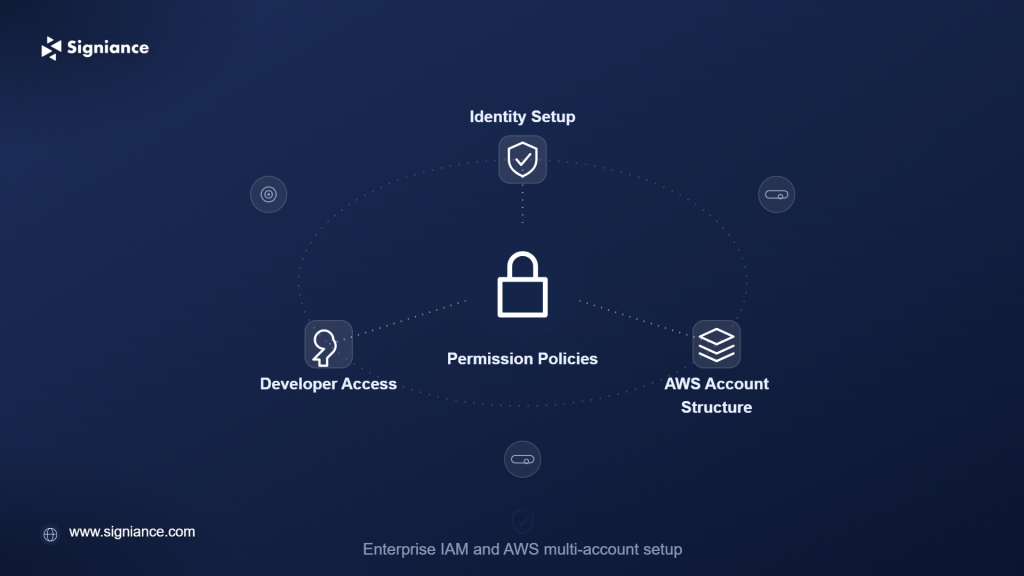
Set up identity, permissions, AWS accounts, regions, subscriptions, and developer access without giving every Kiro user unnecessary AWS privileges.
Kiro IAM and AWS environment setup for enterprise teams requires more than creating user accounts and assigning subscriptions. Teams need a clear separation between Kiro administration, developer identity, AWS resource access, and project-level permissions. This guide explains how to structure the environment, configure IAM Identity Center, control access, and prepare Kiro for secure enterprise development.
Table of Contents
- Topic Introduction
- Why Kiro IAM and AWS Setup Matters
- How to Approach Kiro Enterprise Setup
- When to Configure Each Layer
- Top 8 Steps for Kiro IAM and AWS Environment Setup
- 1. Choose the AWS Account Structure
- 2. Set Up IAM Identity Center
- 3. Create the Kiro Profile
- 4. Define Administrator Permissions
- 5. Configure User and Group Access
- 6. Separate Kiro Access From AWS Resource Access
- 7. Configure Kiro Cloud and Sandbox Access
- 8. Add Governance and Operational Controls
- Conclusion
Enterprise Kiro deployment has several identity and access layers that should not be treated as one permission system. Kiro uses an AWS account and Kiro profile for administration, while enterprise users can authenticate through AWS IAM Identity Center or supported external identity providers such as Okta and Microsoft Entra ID.
The important distinction is between using Kiro and accessing AWS resources through Kiro.
A practical enterprise setup should establish:
- Identity: Who can sign in to Kiro?
- Subscription: Who receives a Kiro subscription?
- Administration: Who can configure Kiro?
- AWS access: Which AWS resources can developers access?
- Sandbox access: Which AWS resources can Kiro tasks access?
- Governance: Which features and actions are allowed?
This separation reduces unnecessary permissions and makes the environment easier to audit and maintain.
Why Kiro IAM and AWS Setup Matters
- Least privilege: Developers should receive only the AWS permissions required for their work. Kiro’s own administrative permissions are separate from permissions used to access project resources.
- Centralized identity: IAM Identity Center provides a central identity layer for Kiro enterprise users and can connect to external identity providers.
- Cleaner onboarding: Group-based identity management makes it easier to add, change, and remove access as teams evolve.
- Auditability: Clear roles and short-lived credentials make AWS access easier to monitor and investigate.
- Environment separation: Keeping Kiro administration separate from workload accounts reduces the risk of excessive access.
How to Approach Kiro Enterprise Setup
| Layer | Recommended Approach | Main Control |
|---|---|---|
| AWS organization | Use existing enterprise account structure | AWS Organizations |
| Identity | Centralize workforce identities | IAM Identity Center or external IdP |
| Kiro administration | Use dedicated administrator roles | IAM |
| Kiro profile | Create in a planned AWS Region | Kiro console |
| Subscriptions | Assign through users or groups | Kiro console |
| Developer AWS access | Use existing workload roles | IAM / IAM Identity Center |
| Kiro sandbox | Use a dedicated least-privilege role | IAM |
| Secrets | Avoid direct long-lived credentials | IAM roles and Secrets Manager |
| Monitoring | Track administrative and AWS activity | CloudTrail / CloudWatch |
| Governance | Define allowed Kiro features | Kiro settings |
Kiro’s enterprise onboarding process connects an identity provider, creates a Kiro profile, and then assigns users or groups to subscription tiers.
When to Configure Each Layer
| Stage | Timing | What to Complete |
|---|---|---|
| 1 | Before Kiro onboarding | Confirm AWS account and organization structure |
| 2 | Before subscriptions | Configure IAM Identity Center or external IdP |
| 3 | During onboarding | Create Kiro profile and select Region |
| 4 | Before user rollout | Configure administrator permissions |
| 5 | Before developer access | Assign users and groups |
| 6 | Before AWS workloads | Configure project-level roles |
| 7 | Before Cloud Sessions | Configure sandbox and AWS access |
| 8 | After rollout | Review logs, permissions, and governance |
Kiro distinguishes between the Region containing the IAM Identity Center instance and the Region where the Kiro profile is created. These can be different, so teams should decide their regional setup before onboarding users.
Top 8 Steps for Kiro IAM and AWS Environment Setup
1. Choose the AWS Account Structure
- Use existing governance: Fit Kiro into the organization’s current AWS account strategy.
- Separate workloads: Keep development, staging, and production permissions distinct.
- Plan administration: Decide which AWS account will own the Kiro profile.
- Limit production access: Avoid giving general Kiro users unrestricted production permissions.
- Document ownership: Define who owns Kiro administration, identity, and workload access.
A Kiro profile represents an AWS account and Region combination. Kiro currently allows one profile for each AWS account in a given Region.
For larger organizations, this makes account and Region selection an architectural decision rather than a simple onboarding step.
2. Set Up IAM Identity Center
- Centralize users: Maintain workforce identities in one controlled identity layer.
- Connect your IdP: Integrate an existing provider when required.
- Create groups: Organize developers by team, environment, or responsibility.
- Review regions: Confirm the Identity Center Region is supported by Kiro.
- Control membership: Treat group membership as an access decision.
Kiro supports AWS IAM Identity Center and direct connections to external providers including Okta and Microsoft Entra ID.
Kiro also recommends AWS Organizations when setting up IAM Identity Center for centralized identity management across multiple AWS accounts.
3. Create the Kiro Profile
- Choose ownership: Decide which AWS account should contain the profile.
- Select region: Create the profile in a supported Kiro Region.
- Name clearly: Use an identifiable profile name for administration.
- Document purpose: Record why the profile exists and who owns it.
- Check dependencies: Confirm identity and administrative permissions first.
Kiro’s enterprise onboarding process creates the profile from the AWS console and then uses it to manage subscriptions and settings.
The Kiro profile is also the management layer for enterprise subscriptions and administrative settings.
4. Define Administrator Permissions
- Use dedicated roles: Avoid using personal administrator credentials for routine Kiro management.
- Apply least privilege: Grant only the permissions required for Kiro administration.
- Separate duties: Keep identity, Kiro administration, and workload operations distinct where practical.
- Review permissions: Reassess administrative access as the team changes.
- Protect service roles: Do not manually modify Kiro-managed service-linked roles unless the documented process requires it.
Kiro documents specific IAM permissions for creating and managing profiles and subscriptions. These include permissions involving Kiro profiles, tagging, subscription-related services, and dashboard metrics.
Kiro enterprise also creates service-linked roles for supported functions. These roles contain service-managed permissions and should be treated differently from normal user-managed IAM roles.
5. Configure User and Group Access
- Start with groups: Assign subscriptions based on team responsibilities where possible.
- Limit exceptions: Use individual assignments only when there is a clear reason.
- Match roles: Separate developers, platform engineers, and administrators.
- Review membership: Remove users when their role changes.
- Automate provisioning: Use SCIM where supported by your external identity provider.
Kiro allows administrators to add users or groups and assign subscription tiers through the Kiro console.
When using Microsoft Entra ID, for example, Kiro supports SCIM provisioning so users and groups can synchronize between the identity provider and Kiro.
6. Separate Kiro Access From AWS Resource Access
- Separate identities: Kiro login does not automatically mean unrestricted AWS access.
- Use IAM roles: Give developers roles appropriate to their workload.
- Avoid static keys: Prefer temporary credentials and role-based access.
- Separate environments: Use different permissions for development and production.
- Control sensitive resources: Restrict databases, secrets, production data, and deployment permissions.
This is one of the most important design decisions for enterprise teams.
A developer may need Kiro to write and test application code without needing permission to delete production infrastructure.
The same principle should apply when Kiro itself interacts with AWS resources.
7. Configure Kiro Cloud and Sandbox Access
- Use dedicated roles: Create an IAM role specifically for Kiro sandbox workloads.
- Define trust: Allow only the required Kiro service principal to assume the role.
- Use short-lived credentials: Kiro Web can deliver temporary credentials to the sandbox while a task runs.
- Scope sessions: Use session-specific conditions where appropriate.
- Audit activity: Use CloudTrail to investigate AWS actions performed through sessions.
Kiro’s current Web sandbox documentation describes a model where Kiro assumes an IAM role and provides short-lived credentials to the sandbox. The credentials are refreshed during the task and removed when the task completes.
Kiro also supports source identity and session-specific controls that can help restrict access to individual users or task sessions.
This provides a better foundation than distributing long-lived AWS access keys to developers or agent environments.
8. Add Governance and Operational Controls
- Control web tools: Decide whether web access is appropriate for your organization.
- Review cloud sessions: Enable Cloud Sessions only when the organization is ready to govern them.
- Monitor activity: Review AWS and Kiro-related administrative events.
- Document exceptions: Record temporary permissions and unusual access.
- Review regularly: Reassess IAM roles, group membership, and Kiro settings.
Kiro enterprise governance includes controls for features such as web tools and Cloud Sessions. Cloud Sessions are disabled by default for organizations using IAM Identity Center until an administrator enables them.
For Kiro Web, some administrator settings do not currently apply to Web sessions, so teams should verify which controls are actually enforced for each Kiro surface they deploy.
Conclusion
Kiro IAM and AWS environment setup for enterprise teams works best when identity, Kiro administration, subscriptions, developer permissions, and AWS workload access are designed as separate layers. Start with centralized identity and least-privilege roles, then add sandbox access and governance based on the workloads your teams actually run.